Meme Coins
Trading Bots
Solana
What is SolScan: The Starter Guide
Lost in Solana wallet confusion? This no-frills introduction guide from your friends at Trojan on Solana shows you exactly how to use SolScan to track wallet activity, decode swaps, and spot missing tokens.

Posted By
Ever been in a help room or maybe just talking with some fellow trenchers, and heard the phrase “check SolScan.”
“No problem, just check SolScan!”
“Did you check SolScan, bro?”
“SolScan is your friend.”
Not wanting to be embarrassed, you reply, “Yeah, I was just about to...”
The only problem? You have no idea what SolScan is or how to use it. Don’t worry, anon, we got you covered. There’s lots of articles out there about SolScan in general, but this one is going to focus on you, your wallet, and your transactions.
So, What the Heck is a Solscan?
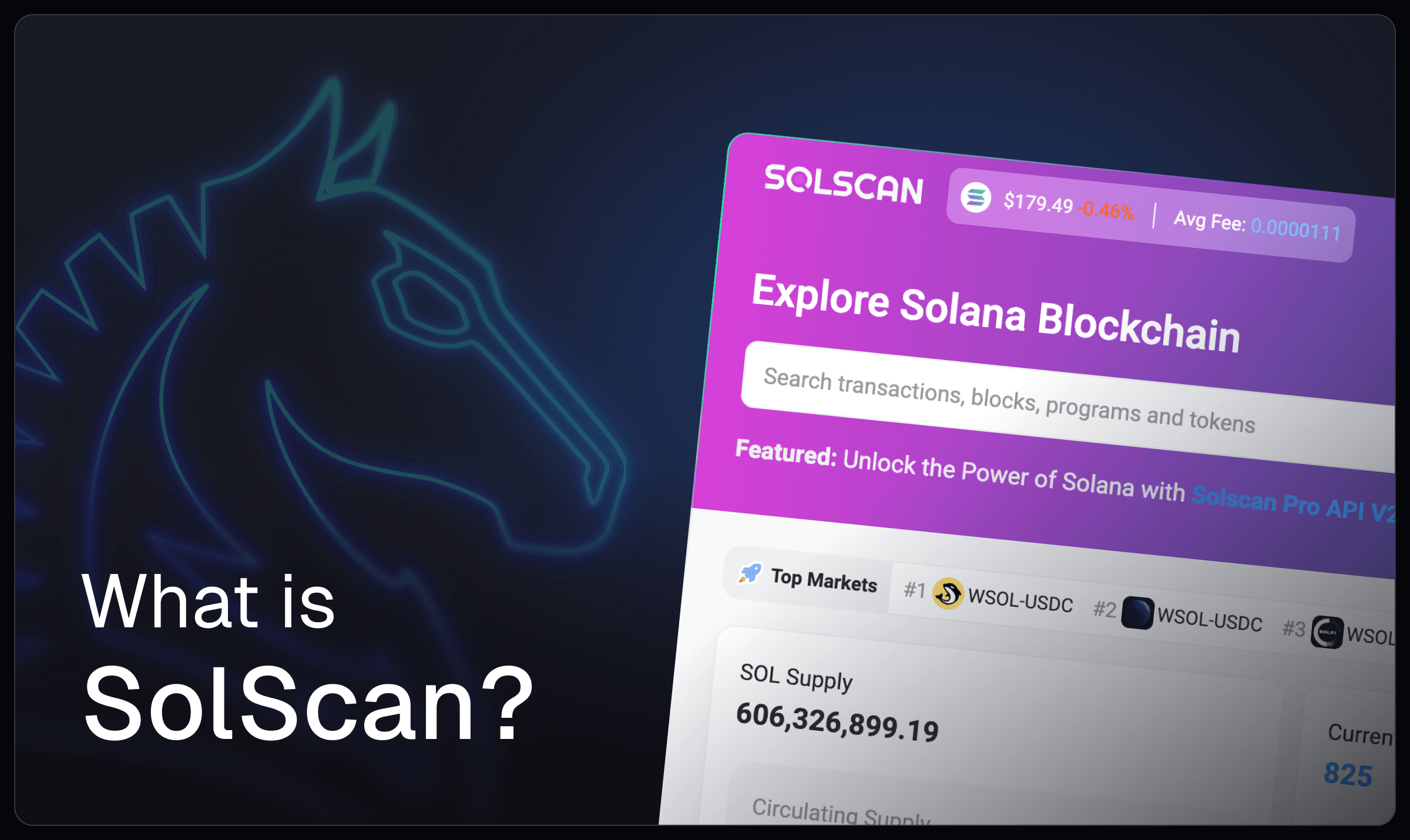
Solscan.io is a blockchain explorer for the Solana network.
Great. Uh…what’s that mean?
A blockchain is a publicly-viewable digital ledger that shows every transaction (also “txn”) made on a network.
Think bricks laid end-to-end. Each action (buys, sells, transfers, contract creation) gets written on a brick, and you can walk back the line of bricks and see everything that came before, all in order. In this case it’s the Solana network, and all that happens on it.
The Solscan interface is intimidating, almost illogical, at first. But fear not, we’re gonna get you through it. And yeah, you can go far deeper than this blog (there’s some really nerd-out type stuff there), let’s start with the basics.
The Basics
Getting anywhere on this self-investigation train requires a starting point. Namely, your wallet address.
If you don’t know, a wallet address is a unique string of characters that Solana (and any blockchain) uses to identify your account. Like a digital ID card. In the Trojan on Solana bot, you’ll find it by typing “/start” and reading the top of the popup.
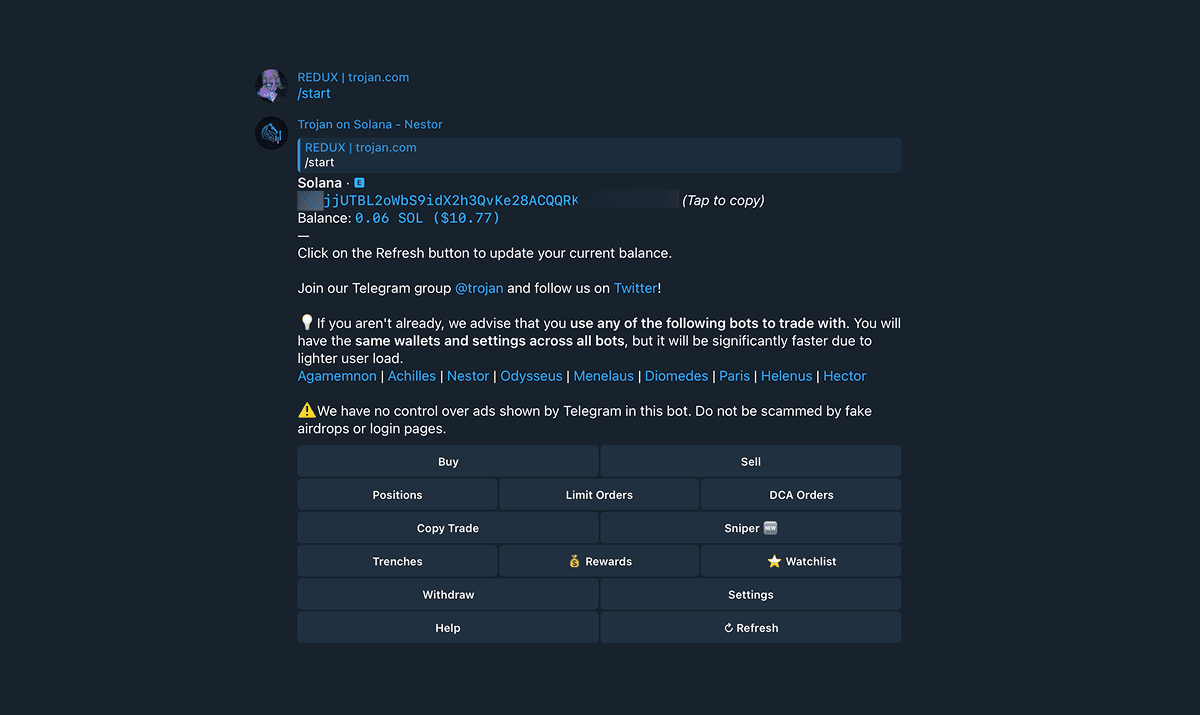
It’s perfectly safe to share this public address. Just don’t confuse it with your Private Key. Never share a Private Key. Ever. With anyone.
Next, navigate over to SolScan.io. And remember this is crypto, only use trusted links.

Ok. We’re on the homepage. It’s a cluster bomb of data and infographics. We see:
Current SOL Price
Top Markets
Total Supply
Current Epoch
Network Speed
Staking Dashboard
DeFi Dashboard
Oh, wait, did I lose you already? You’re wondering what an epoch is?
Ignore it all. Right now, we only care about the search function at the top.
Paste your wallet address here to get started. (You can also put in Token Contract Addresses, or Transaction ID’s etc., but for now we are focusing on wallets.) When you paste it in, SolScan will mirror the character string below, under the word ‘Addresses.’ Click that.

This is the Overview page. It calls your wallet an “Account”.
Displayed here is your SOL balance, your token balance, and a drop down under that. Click it. Take a moment and skim. If you came here because “XYZ Token is missing!” and it’s in this list, then it’s in your wallet, and your issue is something else. Maybe you hid it from view in your bot or wallet. Basically, if it’s here on SolScan, it’s in your wallet.
Below that are navigation tabs covering a long list of functions. For the purposes of this blog, we’ll only cover a few. You may see repeated information, that’s fine. There are many different roads to the goal here. In the end, you’re just looking at transactions.
Would you like to run a Tab?
Let’s talk for a minute about a few of the tabs.
Transactions
This tab is like a full replay of every move your wallet’s made, including all the swaps you’ve executed. Every action—whether it’s a trade, a transfer, or whatever—gets logged here with a Transaction ID (TxID). It’s the place to go when you want to see literally everything.
Click it and you’ll see some stuff you recognize, and a lot of stuff you don’t.
All those txns that have emojis in the “by” column (it might say “casino” or some other phrase or a website address) are spam. Yes, like email spam. Ignore them and they won’t cause you any problems. But this clutter is why we don’t start here when looking for something specific.
Transfers
Here, you’ll see a display of direct transfers of SOL or tokens between addresses. “From” is the source and “To” is the destination of each transfer. If there’s some movement in your wallet you want to investigate, check here.

DeFi Activities
As the name implies, this tab displays DeFi actions and highlights DEX and trading bot activities. It will show token swaps, trade details, amounts, and platforms involved. Good for a quick look to see a bunch of your swaps all at once “X amount of SOL for Y token”. No, you shouldn’t have bought the dinosaur token. Moving on.

Balance Changes
This tab tracks how and when your wallet’s SOL and token balances change over time, with a running tally of each. This one shows swaps right next to JitoTips and the transfers all in one scroll. You can filter by a specific token, by SOL, or SPL.

Sidenote: SPL is just the name given to the toolkit used to make SOL tokens. Not all SOL tokens are SPL, but the vast majority are.
Snoozing yet? Stay with me for just another minute. It’s time to see how to use this thing.
Putting it to work
Alright, you bought a meme coin. You’re looking at your balance and wondering, “What exactly happened here?”
Click Defi Activities.
Scroll to the approximate time you made the trade.
Find the token name in the “amount” column.
Find the “signature” or TxID will be on the left.
Click it. (You might notice the little eye icon to the left of the signature that will show a quick look at the txn, and sometimes this is enough, but for now let’s click through.)
Now we are in the “Transaction Details” screen.
Three tabs at the top:
Overview
Sol Balance Change
Token Balance Change
These are just as they say. Click “Sol Balance Change”, look for your wallet (after you do this a few times you won’t think twice) and you’ll see how your balance changed.
If it was a sell, your SOL balance went up. If it was a buy, it went down. Next, take a peek at Token Balance Change, and you will see the opposite, naturally. (If you sold, number go down, and vice-versa.)
Ok, back to Overview. There’s a bunch here:
Signature
A unique code to identify the txn that is also called a “Transaction ID”. If you were to navigate back to the Transactions tab you would see this same txn there with this same code.
Block and Timestamp
Pretty much as it sounds. The block (like, on the blockchain) where this txn took place. Sometimes helpful if you go deeper and want to know what happened right before, or after this txn. Same thing with the time stamp. Clicking the time stamp toggles from UTC to your local time.
Result
You’re getting the hang of this, anon, right? You see here if the txn was a success, or a fail.
Signer
Who authorized this? Hopefully, you did! If you are looking at one of your swaps, you will see your address here.
Below all this, is the real nitty gritty stuff. Promise we’ll keep it brief.
Digging into the Details
Transaction Actions
Two tabs / modes here. Summary and Legacy mode. Legacy has more detail. You get a step-by-step recounting of the mechanism of a txn here.
Example:
Let's say you swapped 2 SOL for a meme token called COOLTOKEN.
In Summary mode, you'll see a clean breakdown: your wallet approved the trade, the bot interacted with the liquidity pool, SOL left your wallet, and COOLTOKEN tokens came in (if it worked.)
In Legacy mode you'll get the full play-by-play: Where you sent your SOL (to a liquidity pool, typically). How they sent you your tokens back.
USD values might seem off. SolScan defaults to current value, but clicking on them changes the figures to the day of the swap. That can be slightly askew at times too. Frankly, trying to get exact figures can be like trying to solve the Three Body Problem. Only bother fussing if it’s important.
If you make a note of the block you see in this txn, then flip back to the Transactions tab, and look for that number, and you’ll see the same txn, and immediately afterwards, the Jito tip for MEV protection if you have that. If you are tracking down every bit of SOL and where it went, don’t forget to account for that.
Good Job, Anon
Alright, anon, you’ve made it through the Transaction Details screen. You’re no longer a SolScan newb. Pat yourself on the back for learning. There’s much much more, but consider this your intro, your 101. SolScan is your map to the Solana chaos; it keeps track of everything. All you need to know is how to find it.
If you get stuck, just come back to this guide or hit someone up for help. And as always you’re welcome to come ask in our help chat.
Have fun out there anon, stay safe, and trade with Trojan on Solana.
P.S. An epoch is kind of like a work shift for validators (the computers or nodes that run the network.) They do their job for a few days, and get paid at the end. They are the Joes of the job, making sure the bricks keep getting laid.