Meme Coins
Trading Bots
Solana
Trojan on Solana Trading Bot: The Complete Beginner’s Guide [2025]
Dive into the thrilling world of crypto trading with Trojan on Solana, the ultimate Telegram bot for Solana-based tokens. Our guide unveils a step-by-step journey from setup to savvy trading, packed with essential security tips to shield your wallet from scammers. If you’re ready to wield power, protect your bags, and learn the smartest ways to snipe, trade, and win, we have exactly what you need.

Posted By
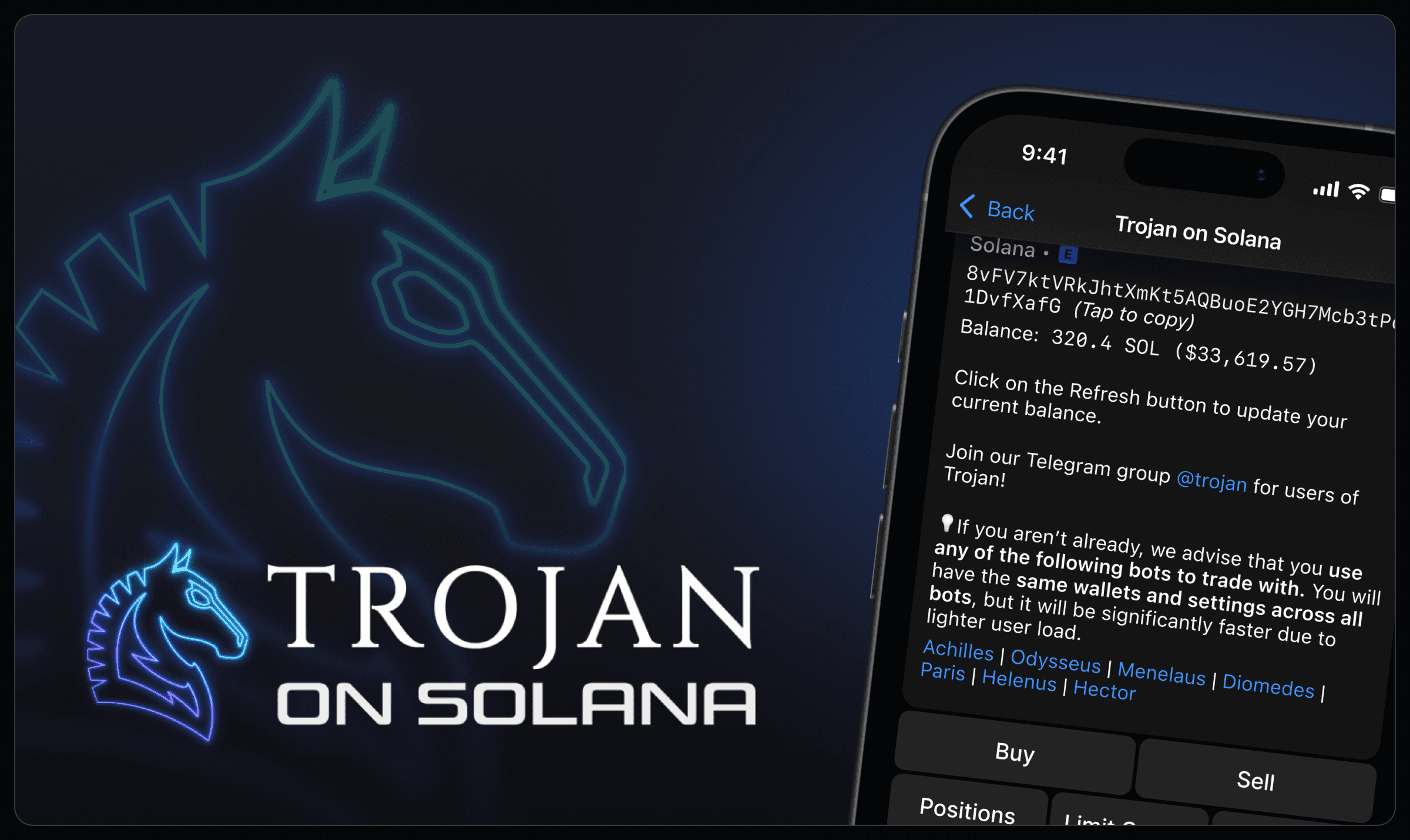
Welcome to Trojan on Solana, the best Telegram trading bot for Solana-based tokens (SPL). Today we’re going all out with a definitive, top-to-bottom, user guide. We’re going to deal with all the step-by-step walkthroughs and get you from zero to swapping tokens. Plus we’re going to throw in a healthy dose of operational security (OpSec) to help you keep those coins in your wallet and the scammers out. So grab a coffee, settle in, and let’s get into it.
Step 1: Telegram
Trojan on Solana is a Telegram-based trading bot. Practically, that means you will need to download Telegram and create an account before you’re going to be able to start using Trojan. We’ll cover both possibilities (i.e. you have or do not have Telegram installed already).
If you already have Telegram installed, the safest and simplest method to access our main bot is to click this link: https://t.me/solana_trojanbot and I will explain why. There are many fake Telegram links that will attempt to steal your login information or your money. Do not try searching Telegram for our bots, only trust the official links at trojanonsolana.com/links. You can skip to Step 2.
If you do not already have Telegram installed, you should go to the official Telegram website at this link: https://telegram.org/
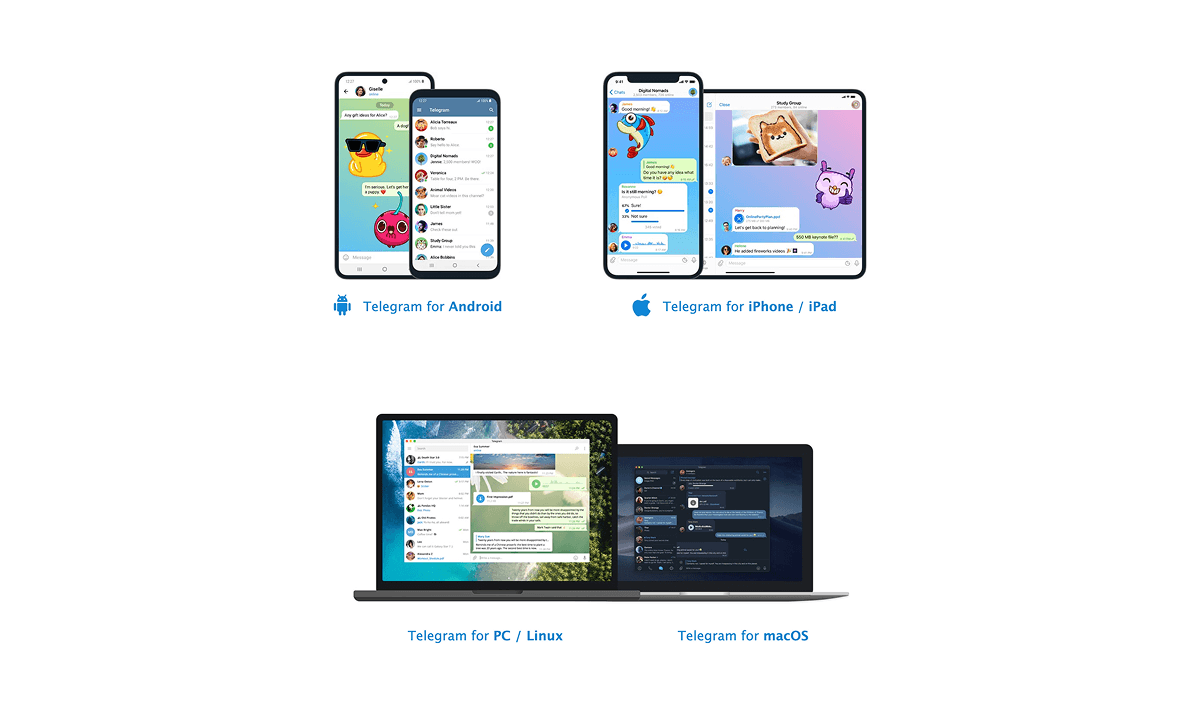
iOS and MacOS users will have the option to download directly or from the Apple App Store. Either will result in the same end point.
Android users will see similar options, except theirs will be a direct download or a link to the Google Play store. Again, either results in the same application being installed.
If you prefer, the direct link to the Google Play store is: https://play.google.com/store/apps/details?id=org.telegram.messenger
Windows and Linux PC users will want to go to https://desktop.telegram.org/, download the application, and run it.
Once you install Telegram, you need to create an account. This requires a phone number to complete. Your Telegram account will be tied to this phone number, so you, and only you, should have access to it.
Step 2: A Little OpSec
We’re going to get you connected to our 24/7 real human help channel before we finish, but we need to take care of some OpSec and a few basics first so you don’t get scammed.
Once you set up a Telegram account we recommend altering a number of security settings (some differences exist between platforms so this is generalized):
Access “Settings”
Click “Privacy and Security”
Turn on Two-Step Verification
you will create a passcode that is required to make changes
Turn on Passcode Lock
you will use a code to access Telegram
Change the following Privacy settings to “Nobody”
Phone Number, Date of Birth, Calls, Invites
Go back to “Settings”
Click “Data and Storage”
Under “Automatic Media Download” (on mobile) or “Advanced” (on desktop)
Go in each category and turn off auto-download for everything
Lastly, if you ever choose to add new contacts we highly recommend you do not share your phone number with them.
Now that your Telegram (TG) is set up securely, let’s get into the Trojan bot. Here is an official access link. If a link ever feels questionable, don’t click it. Go back to https://trojanonsolana.com/links where the official links are, and go from there.
On to the bot!
Step 3: Getting Started
When you first access the bot and click “Start” you’ll see our terms of service, and a warning about not clicking ads. I cannot emphasize enough, do. not. click. ads.
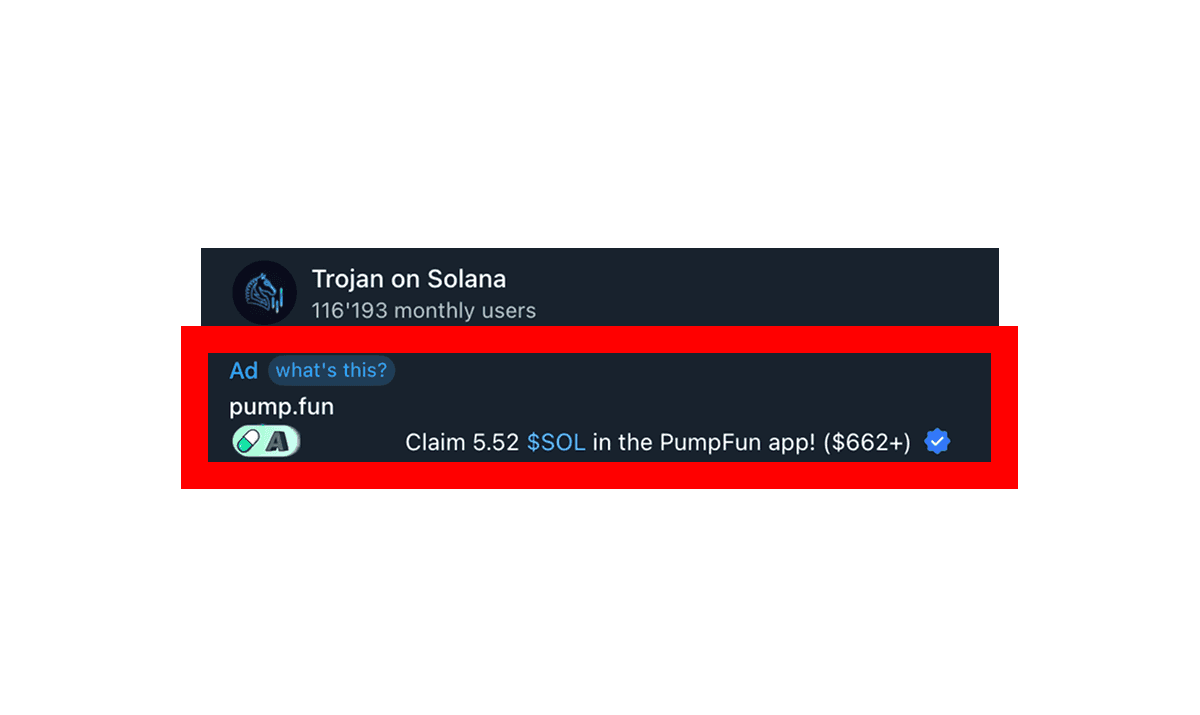
This is one of the scam ads going around. Do not click it. It’s fake and could steal your funds. It’s not from us.
Click “Continue” and the bot will auto-create a wallet for you.
Sidenote: There are in fact both a Solana and Ethereum address created, but for now we are only covering Solana.
Along with the display of your public address (the string of numbers and letters that follows the blue “SOL:”) you will see a second string of letters and numbers below the words “Secret Key”. Let’s explain these briefly:
Public Address - this can be shared with anyone you want to receive funds from. With this anyone can see what and how much you have in crypto, but they cannot do anything to those funds.
Secret Key - also known as a private key (PK), NEVER share this with anyone. Do not screenshot it or store it on your digital devices. Anyone with access to this alphanumeric string has complete access to all funds held in the public address.
We highly, highly recommend you take a minute to write down the pk on a piece of paper (it is case sensitive!) and store that piece of paper in a secure location. Should anything happen to your device or your Telegram app, the pk is how you recover your wallet. So protect it like money.
You can use this wallet, create more, or even import an external Solana wallet (e.g. Phantom or Solflare). But we will cover external wallet usage a little later. For now, we will assume you are using this new one.
Step 4: Funding
In order to trade on Solana, you’re going to need some SOL. There are a number of ways you can obtain SOL, but for now you cannot directly exchange fiat (dollars, euros, etc.) for SOL through our bot.
The safest third-party option is to transfer fiat to a centralized exchange (Kraken, Binance, Robinhood, Coinbase, etc) and swap to SOL. There are other options, but we will not be covering them here.
Once you have obtained your SOL, you will want to move it to your non-custodial wallet address that Trojan helped you establish in Step 3. This is a simple, but exact process:
In the Trojan Telegram bot type “/start” and send.
At the top of the generated message is your public address.
Copy the address.
Go to where you have your SOL (this could be an exchange or wallet).
Choose to send.
Paste in the public address from the Trojan bot.
Double-check to ensure the pasted address matches the Trojan one.
Send a “test transaction” amount. Usually just $1 or so.
Once the test amount successfully arrives, you can repeat the same steps, but send the full amount you wish to trade with.
Congratulations, you now have a funded wallet!
Remember, all trading wallets should be treated like hot wallets. It is recommended to always store crypto you’re not actively trading with in a “cold wallet”. We will cover this topic in detail in a separate blog post.
We’re getting there! One more minor OpSec and then let’s talk bot settings, making effective trades, and get you safely connected to our help chat and docs so that you can take the reins and really expand your borders.
Step 5: One Last Security Measure - SAP
We recommend you set up a SAP (secure action password). This puts one last important layer of security in place for you, so that should some slimy ne’er-do-well get their hands into your TG, they won’t be able to withdraw funds, view/export your pk, or take other “sensitive” actions.
Creating your SAP is simple:
In the bot interface either send the message “/settings” or click the menu button, scroll, and click “settings”.
Click “Account Security”
Click “Create”
Send a password, being sure to follow the directions.
Confirm the password.
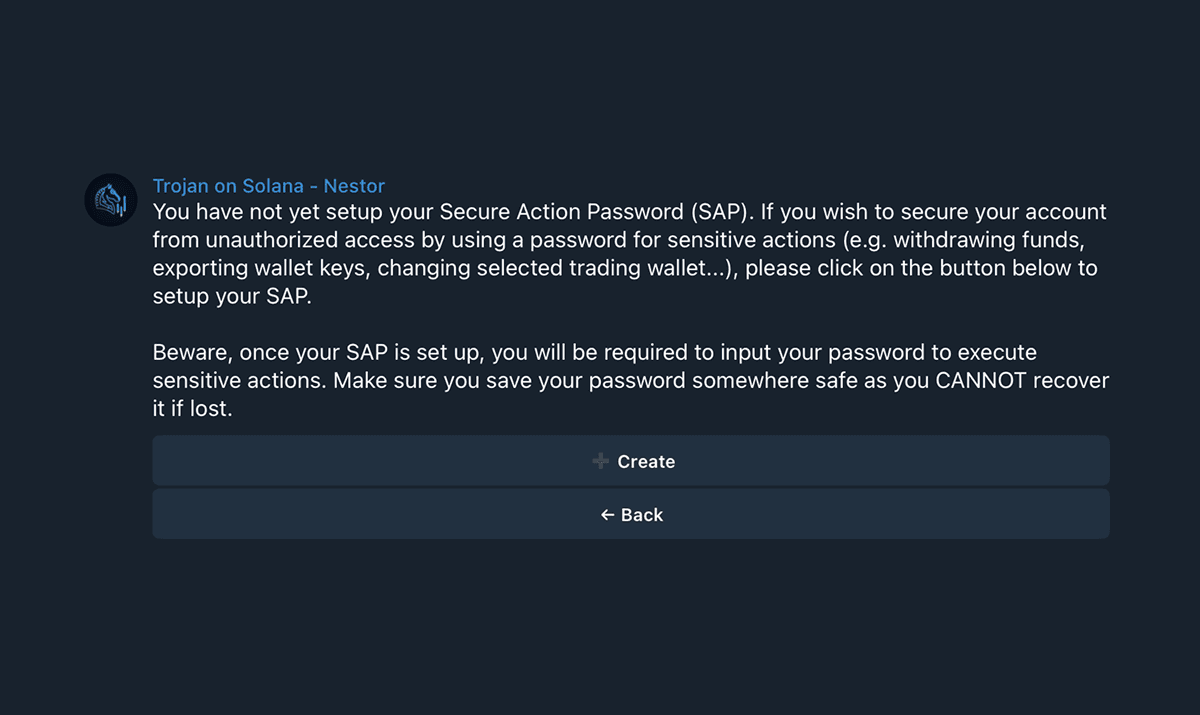
SAPs cannot be recovered by Trojan. The only way to access your funds, should you forget the SAP, will be to use the pk you wrote down earlier (remember that important step?) to export your wallet.
There are three options once you have created the SAP:
Delete - if you feel you don’t want the extra protection.
Change - which requires deleting and then following the above steps to make a new one.
Add a hint Add a hint Add a hint - again Trojan cannot recover or reset your SAP and you’re going to forget at some point and real chads add hints. Be a chad not a sad.
OK. Let’s do bot settings!
Step 6: Bot Settings
There are a truly impressive number of things that you can do with the Trojan bot, from copy trades to autosell, slippage adjustments and more. We’re not going to dump all that on you here.
Instead, we’re going to give you a couple of options that generally work well for new users, brief explanations about them, and the resources to learn how to best customize your experience as you wade deeper. Ready?
First, from the bot start menu, click “Settings” and at the bottom make sure it shows “Advanced Mode ➜”. This indicates that you are currently on “Simple Mode,” which we want for now. If you see “Simple Mode ➜” at the bottom, click it to swap.
We’re going to cover Slippage, Gas Tip, and MEV. Then we’ll give you our suggestions.
Slippage
You can independently change Buy and Sell slippages by clicking their button and inputting the desired amount (the preset is 15%). Slippage identifies the percentage (of your choice) that reflects tolerance for price changes during transaction execution.
In practical terms, it means you see a price quote, you click buy or sell, and you may get a different result than quoted. Why? Volatility.
While Trojan has the best routing in crypto, there is no avoiding volatility (rapid, sometimes large price changes). You must decide how much change is acceptable before you are not willing to make the swap.
Very volatile coins or conditions (think meme coin launches) mandate larger slippage if you want the exchange to happen. Less volatile markets (like swapping SOL for USDC) should be reined in (only a few percent, if even that) so that you are not the victim of MEV attacks that steal your value.
Priority Gas Tip
There’s a great short coverage on this in our docs here. But a way to understand it is this: imagine you go to a busy restaurant, you want to eat the fish, but you know it sells out at this place. You call over the waiter, slip him a twenty and tell him to get your order for the fish put in ahead of everyone else’s order to make sure you get it.
Trojan doesn’t get this tip, the Solana validators do. And if you really want those coins that are selling fast, you’ll need to pay them extra.
You will see at the top of the interface Trojan has presets of Fast and Turbo. You can also set your own custom tip fee.
MEV Protection
This one is tougher to explain. Going back to our fish example, imagine that every time an order for fish goes through, the amount of fish you get for the same price changes.
While normal dinner is happening, a millionaire walks into the restaurant and he sees you are putting in an order to buy a fish plate. He tips the waiter a bunch of money before your order goes through and says he wants to put 200 orders of fish in ahead of your order. Suddenly, you only get a single bite of fish instead of a full dinner. And then the millionaire sends all 200 orders of fish back. That’s kind of how MEV works.
You get a far different outcome from the expected one. This can only affect you if your slippage allows it to. MEV Protection attempts to ensure you only get (generally) the amount of fish you expect to get, but it can mean there are slight delays. You can turn it on/off for both buys and sells independently.
General principles:
With MEV protection off
you should use lower slippage
MEV protection on
can use higher slippage
Sidenote: The harder you expect it is going to be to get a transaction through, the higher you’ll probably want to make the tip.
Trojan Suggestions:
Use the “Turbo” tip preset
Larger Market Cap Coins (1M and up) -
0.5-5% slippage
Small Market Cap (under 1M but not brand new)
~5% slippage (or less)
Microcaps (under 200k)
5-15% slippage
Brand New Popular Launches
You may bump slippage 15%+
These are just suggestions. It is always wise to adjust settings based on your style, the kind of market you are trading, and risk tolerance.
Protip: If sniping a coin, it typically requires a much higher slippage percentage to handle rapid price movements.
Price Impact
This is a complicated subject, so we won’t go too deep here. But we’ll give two brief explanations, a technical one and a simplified one:
In technicals - the closer to 1:1 the ratio of a buy/sell amount to liquidity gets, the further the result will be from the quoted outcome.
In super simples - if you try to buy/sell a significant amount of a coin’s supply in one shot, the impact of your action will give a different exchange rate than expected.
We wrote a whole blog on price impact. If you’re interested, check it out here.
Sell Protection
When on, you will be required to confirm your desire to sell tokens should you attempt to sell more than 75% of your holdings. It’s a small extra step, but could prevent you from offloading an asset with an accidental button click.
Autobuy
One of the coolest features, but be careful. When enabled, your preset amount will be purchased any time you send a contract address (CA) to the bot. This means there will be no confirmation steps or slow downs. If you post the CA, the bot buys it instantly.
Trojan Suggestions:
Sell protection - on until you are comfortable with the UI
Autobuy - off, until you have developed your strategy
You will see there are some preset amounts for buying and selling with pencil icons next to them, these are all customizable, just by clicking and inputting your desired amounts. Lastly we’ll talk about the “Wallets” button and options.
Wallets
When you click “Wallets” you’ll see a number of options, but for now, we’re just going to cover creating, changing, and importing/exporting wallets.
Creating a new Solana Wallet
Click “Create Solana Wallet”
The interface will instantly create another Solana Address
it will display the address and pk (write it down!)
Changing between Wallets
In the “Wallets” interface just click the wallet you want.
Then click the button “Set as Active Wallet”
You can change the name of the Wallet here by clicking the Label button
You can delete a wallet from the interface by clicking “Delete”
You will need to confirm
You can only recover a deleted wallet with the pk (did you write it down?)
Exporting Solana Wallet (this will show your pk, be sure no one can see)
If you didn’t write down the pk, or it got misplaced, and you need to write it down again or you want to duplicate the access in another location
Click the Name of the Wallet
Click “Export Private Keys”
Confirm
Once you have copied the pk, click “Close” to remove the message
Importing Solana Wallet (you have an external wallet you want to use in Trojan)
This will require putting the pk for your wallet into the interface
The more secure practice is to simply transfer in funds you wish to use.
Should you choose to import
Click “Import Solana Wallet”
Click “Proceed With import”
Type in or Paste in the pk from an outside wallet
Step 7: Making Your First Trade
You’re here! It’s time to find your first coin and make a swap. You’ve got two main decisions to make:
What do I want to buy?
How much do I want to buy?
There are many different ways to find tokens, and many different opinions on how to choose which ones to buy. A few of the most common places to find options are:
Telegram group chats and call channels
X (Twitter) postings by any of the Crypto Twitter influencers
Launchpad feeds
Other social media outlets
Screener sites (we’ll talk about these shortly)
There are potential positives and negatives to each of these. Be aware that most of the people who post CAs publicly already hold positions in that coin. And some contracts could possibly be malicious, with hidden code that could steal funds from your wallet simply by interacting with it.
But, you say, I don’t know how to read code. How can I guard myself from that? Are you trying to scare me?
Yes. A little. Being in crypto gives you a lot of freedom, but responsibility comes along with it. You control your wallet, so protect it. Here’s a few ways to avoid anything questionable:
If you see something in your wallet that you didn’t buy and/or don’t recognize, don’t interact with it.
Trojan flags stuff you didn’t buy in the bot.
Start your trading journey by only swapping coins that
have a track record (plenty of trading activity already)
come from an established launchpad like
Tokens launched from these apps and sites are precoded to be about as safe as they can be. One of your best friends in the crypto space is the wisdom of crowds. Being first through the gate has the highest potential gains, but it is usually also the most risky.
One other recommendation is to have multiple wallets on the trading bot. Use one for your very risky plays (you could even name it “Risky”) and only keep as much SOL in there as you need for those kinds of plays. Keep the rest of your trading funds in a separate “safe trades” wallet.
Screeners
Very briefly, let’s mention about screener sites. These offer a running feed of tokens, provide charts, metrics, and quick links. They can be one of your best friends or one of your worst enemies. Some are in the business of giving real live data and showing what coins are trending. Some are in the business of extraction and will highlight whoever pays them the most. A short list of some of the most commonly used are as follows:
Protip: “Boosted” coins are not necessarily trending or even popular, it means someone has paid to advertise them.
In another blog we may do a full rundown on using one of these screeners, but for the sake of this blog we will assume you have a coin in mind to buy already. We will also assume that you have obtained the verified Contract Address (CA) which is a unique string of characters that the Solana network uses to identify a token.
If you find a coin on one of the screener sites (for example) you should see a copy button near the name of the token which, when clicked on, will copy the CA to your device’s clipboard.
Once you have a verified CA in hand, paste it into the bot. You will see a dialogue pop up with three buying options: 0.5 SOL, 1 SOL, X SOL.
If you select either of the preset amounts, the transaction will attempt to process immediately.
If you would like to buy a different amount than the presets, click the “X SOL” button and respond to the message with the amount of SOL you would like to buy. The transaction will attempt to process immediately.
Congratulations! You bought your first token!
Two quick notes before we move on:
You can buy with almost any amount of SOL. You could start as small as 0.01 to get a feel for things. Just be aware that the combination of transaction fees and gas will likely make trading such small amounts unsustainable in the long run.
If you know that you would always prefer to buy in different amounts than the presets, you can change them by going into settings and editing one of the first two buttons under “Buy Amounts”.
If you want to explore more customization options like these we highly recommend you spend some time in our docs, which can be accessed here.
Step 8: Selling Your First Token
Wait! Wait!, you say, I just bought this thing.
Yes. Now learn to sell it. And for two reasons:
You need to know how, and there’s no time like right now while you’re in learning mode already.
It is good to know that it’s OK to sell. Your phone won’t melt, the world won’t stop spinning, you won’t be a crypto failure or a bad community member.
So, how do we sell?
From the Start menu click “Sell”
A popup will show your holdings and their value
Click the name of the coin you wish to sell
A popup will give you the option to sell 50%, 100% or a custom amount
Click 100% to sell it all
Because we have “Sell Protection” on, you must confirm the sell
There’s your PnL and Reflink
Congratulations! You sold your first token!
And see. Everything is still OK.
Let’s hit a few last points, tell you how to safely get help if you want it, and give you a few other resources before we wrap up.
Step 9: A Few Last Points
You may have noticed on that sell card (we call them PnL cards) that there was a mention of a “reflink”. We at Trojan have always made it a point to reward loyal users. So let’s look at how using our Telegram bot benefits you, no matter what your coins do.
From the main menu click the “Rewards” button. This will show you the amount of Cashback Rewards you have earned and all your reflink metrics. What are Cashback and reflinks?
Cashback - 20% of your trading fees are funnelled right back into a rewards wallet that you can claim every 12 hours.
Reflink - if you give your reflink to other traders and they sign up using it, you will get a percentage of their trading fees. And their referrals earn for you too. You can learn more here.
To collect your earned rewards, simply click the “Rewards Wallet” button and tell the bot where to send your bonus SOL. It’s that easy.
Reviewing your Portfolio
This one’s super simple. From your start menu click “Positions”. This will bring up a detailed run down of your top-valued holdings. From here you can select which coin to engage with, including purchasing more or selling portions or all. Whichever coin name shows the green checkmark is the one you are engaging with. Simply click on another name to change.
Protip: Though we are unaware of incidents of malicious effects from Solana coins, if there are coins that land in your wallet that you did not purchase and do not recognize, best practice is to not sell, burn, or interact with them in any way. Trojan’s system automatically provides you a warning for any coins in your wallet you didn’t buy with the bot.
Withdrawing
Eventually you might want to store some of those earnings in a cold wallet or offramp back into fiat. Your options are to withdraw SOL or your holdings. You can also bridge and withdraw Ethereum, but we’re only covering Solana in this blog.
From the start menu click “Withdraw”
Select Solana
Select what you want to withdraw (we’ll pretend it’s SOL)
Select the amount of your holdings in % or a specific amount
Input the public wallet address where you want to send your funds
Once more, it is recommended to send a test transaction first and the full amount upon successful receipt
Realized gains are a beautiful thing.
Backup Bots
Trojan on Solana runs a number of “backup bots” in order to help distribute load or provide secondary operational routes should there be times of extreme congestion. Each has identical functionality and will automatically have your wallet and settings ported over and available when you access it. The official links for the bots can be found here.
Docs
We’ve mentioned it a couple times here, but we wanted to carve out a special point for our documentation. A lot of work has gone into covering all the aspects and features of the bot in a logical, easy to understand manner to help you win with Trojan. You can access them here.
24/7 Support
As a part of Trojan’s commitment to users, we run a Telegram help channel, staffed by real live human beings, who know the Trojan bot inside and out. If you’ve got deep questions or just need a little help figuring something out, they can do it. Before I tell you how to get to them, we’ve got to talk scammers one last time.
See, scammers love to try and dm (direct message) Trojan users and impersonate our staff. They do this to try and steal your money or compromise your Telegram account.
Trojan moderators will never dm you first. If someone does, you should ignore or delete the chat. Scammers are very sneaky, so stay sharp.
Even in the chat itself, you may get imposters. Sometimes they sneak in before our mods can hammer them. So, a couple last notes before I give you the support link:
Our staff will never ask for your private key. Ever.
Our staff will never ask you to send them funds. Ever.
Our staff will never dm or call you first. Ever.
Our official staff list can be viewed in the chat any time by typing “/adminlist”.
Always double check to make sure it is actual staff.
Good? OK. The official support channel portal link is here: https://t.me/trojan. Once you verify your humanity, you’ll be able to enter in and get all the help you need.
Step 10: Have Fun
We’ve covered the basics of buying and selling, some standard settings, and some good OpSec. While there is much more to learn, many users get by just fine with that, so take the system for a spin and see where it gets you.
Trojan on Solana is always building and expanding, trying to make it easier for you to succeed in this wild, fast-paced crypto market. At the end of the day, we hope you can get in, earn some extra SOL, make some friends, and enjoy the ride.
We hope you’ve enjoyed and benefited from this beginners guide. Stay safe, stay strong, stay Trojan on Solana.